
If your machine runs the A15 Pro system, here's how to get a design from your computer into machine memory and onto the screen, plus what to do when it won't show up.

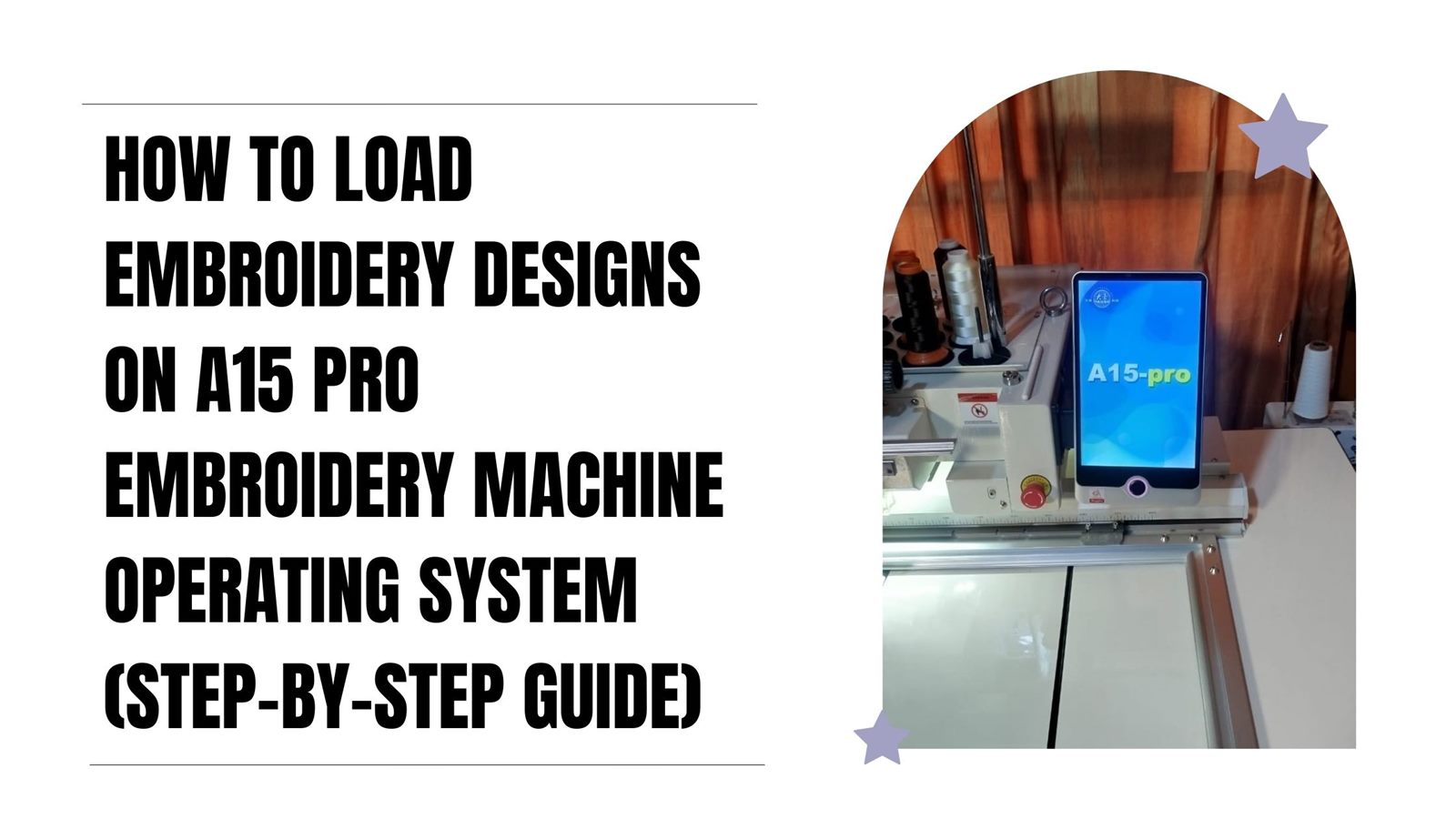
If your embroidery machine runs on the A15 Pro operating system, you need to know how to import designs before you can stitch. It's the control interface used on a lot of industrial and commercial machines. It manages your files, controls the machine, and gets designs ready for production.
Here's how to load a design onto the A15 Pro system from a USB flash drive. Once you understand how the system handles files, it's simple.
Most loading problems are made at the computer, not at the machine. Two minutes here saves you a trip back.
Before loading a design, save it in a format the machine can read. Most industrial machines on the A15 Pro system use the DST format. After digitizing your design, or buying a ready-made one:
The DST file holds the stitch instructions the machine follows to reproduce the design.
Next, move the file onto a USB flash drive:
Don't bury the design inside several folders. Some machines won't detect files nested too deep. Once it's copied, safely eject the drive.
Put the USB drive into the machine's USB port. The A15 Pro interface will detect it and let you open the files on the drive.
On the machine screen, find the flash drive icon in the interface and tap it to open the drive. The system lists every design on the drive, and you should see the DST file you copied.
Machines on the A15 Pro system need the design copied into memory before stitching. To do that:
The design is now saved in the machine's memory.
Before loading a new design, clear the one on the interface. Tap Cancel EMB, then confirm with OK. That clears the workspace for the new design.
Now load the saved design:
The design loads onto the main interface.
Tap the confirmation button and return to the main interface. You should see the design on screen, ready to stitch.
The design being on screen isn't the same as the design being ready. Five things worth checking every time, because all five are cheaper to check than to fix:
Most of the time it's one of these:
The memory slots fill up, usually at the worst moment. A bit of housekeeping saves you doing it against the clock.
Clear out designs you've finished with, keep the ones you stitch regularly, and use slot numbers in a way that means something to you rather than taking whatever comes next.
If you've got a busy day ahead, load everything in one session rather than one job at a time. Copy the day's designs onto the drive at the computer, bring them across into memory together, and write down which slot each one went into. Walking back to the office between jobs is time you're paying for, and it's the sort of thing that quietly costs an hour a week.
The important part: machine memory is not a backup. Keep every design on your computer, and a copy somewhere else again. Machines get serviced, boards get replaced, and designs stored only on the machine go with them. If you bought designs from EmbGig you can download them again, but anything you digitized yourself is gone for good.
Most machines on the A15 Pro system use the DST format, which holds the stitch data used during embroidery.
If it doesn't appear, check that the design is saved in DST format, the drive is properly inserted, the file name isn't too long, and the file isn't buried inside several folders.
Yes. Machines on the A15 Pro system usually need the design copied into memory before it can be loaded and stitched.
The interface will let you, and it's fine for very small adjustments. It is not the same as redigitizing. Stitch count stays the same while the area changes, so scale a design up and it goes thin, scale it down and it goes dense and stiff. For anything more than a nudge, go back to the source file.
It varies by model, and the number of designs matters less than their size. A memory that holds plenty of left-chest logos will fill up fast on jacket backs and large native wear motifs, because those carry many times the stitch count. Treat it as working space for the jobs in front of you, not as storage.
Almost always the start point rather than the file. Set the start point and trace the outline before you begin, and check the garment is hooped straight.
Loading designs on the A15 Pro is a basic skill for anyone running an industrial machine. Once you can move a file from a USB drive into memory and onto the screen, you go from digitizing to stitching without a hitch.
If you're still choosing a machine, our guide to choosing the right embroidery machine covers what actually matters. And if you want to make your own designs rather than buy them, start with how to become an embroidery digitizer. For more tutorials, check out The Embroidery Cloud on YouTube.
The Academy turns articles like this into proper courses, with video lessons, assessments, and people to learn alongside.